
Overview
Unlinking a user removes their access to a profile in your supplier company.
The profile remains in your team, but the user can no longer log in or access it.
Use this when a consultant or team member is no longer working with your company.
Who Can Unlink Users
Only the following roles can perform this action:
- Admin
- Manager
Before You Start
You can only unlink a user if all conditions below are met:
- No active applications on open job requests
- No applications with status Accepted (Deal)
- No active contracts or pending time reports
- The user is not the last Admin on the account (one admin user is required)
If any of these conditions are not met, the system will show an error message explaining why, please contact support@eworkgroup.com for further assitance or questions.
How to Unlink a User
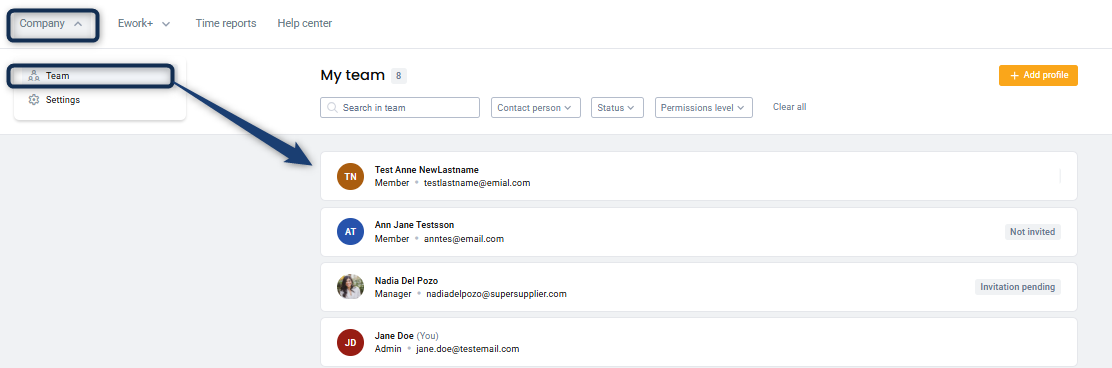
1. Go to main menu Company and select Team
Log in to the Supplier Portal and open the Team section in the main menu option Company.
2. Open the Profile
Find the user you want to unlink and click their name to open their profile.
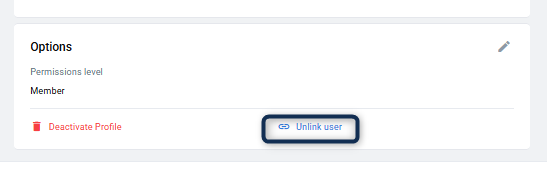
3. Select “Unlink User”
Scroll to the bottom of the user profile to the section Options, click Unlink User (available for profiles linked to the company or profiles with a pending invitation).
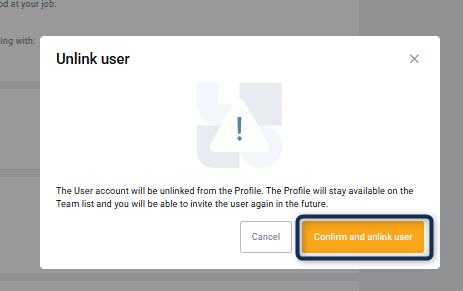
4. Confirm
Review the information and confirm the action.
What Happens After Unlinking
- The profile remains in your Team list
- The profile status changes to Not Invited
- The user loses access and cannot log in in relation to the company the user is unlinked tfrom.
- The user account itself is not deleted, a user account can be a private account or connected to other company accounts.
- You can still manage and reuse the profile
Re-invite the User (Optional)
If you need to reconnect the user later:
- Open the profile in the Team list
- Click Send Invitation
- The user will receive an email invitation
- Access is restored only after the user accepts
Troubleshooting
Cannot unlink user
- Check for active applications, contracts, or time reports
User is last Admin
- Assign another Admin before unlinking
Issue still not resolved
- Contact support: support@verama.com